
Learn how to sort Excel cells by color in this dedicated guide. A database full of colors in Microsoft Excel is difficult to use for various reasons. However, the practice of using different colors to indicate different categories within the same database is still quite common, even though it’s one of the mistakes to avoid in Excel. Sorting by color tends to be inefficient and should be avoided, but if we receive files from others, we may find ourselves in this situation.
In this article, we’ll discuss how to solve this problem, since Excel allows you to filter by color within a specific worksheet. Let’s explore this together using a simple file (you can download the initial file here; the final file is at the bottom of the article).
Sorting Excel Cells by Color: A Practical Example
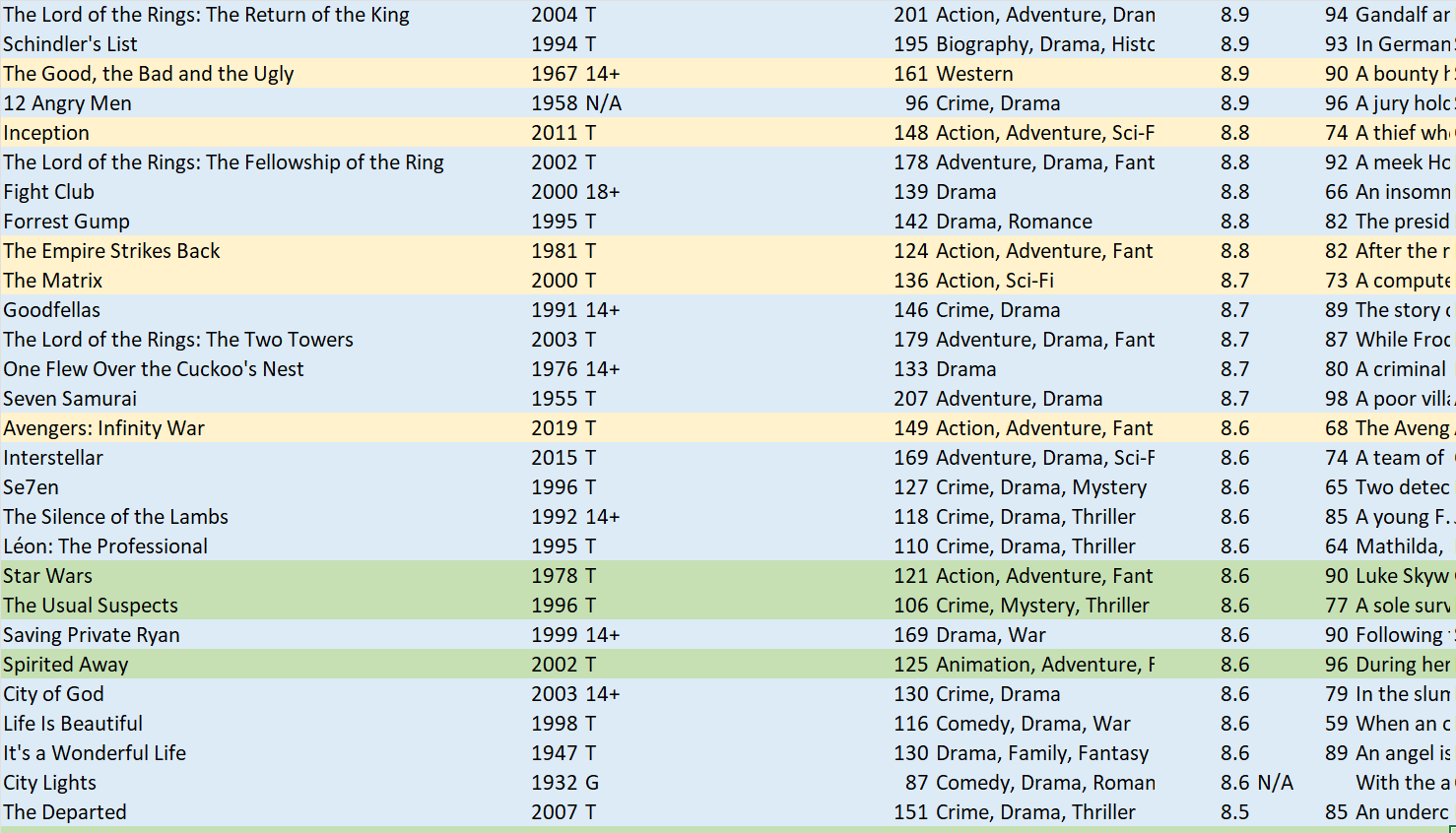
The initial dataset has some light blue cells, some yellow ones, and some green ones. We’d like to see all the light blue cells first, followed by the yellow ones, and then the green ones. We could create a helper column to indicate the cell’s color, which would work since there are only 50 results. However, we realize that this is still a time-consuming and tedious process, and it can lead to various types of errors.
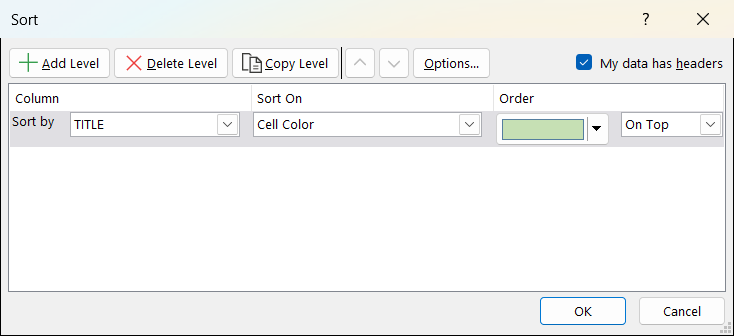
The procedure is as follows: select row A -> Home -> Sort & Filter -> Custom Sort -> Add Column. From here, we see that the “Sort by” section also includes cell color. The big advantage is that the colors are automatically retrieved by the system, so we don’t have to enter them manually.
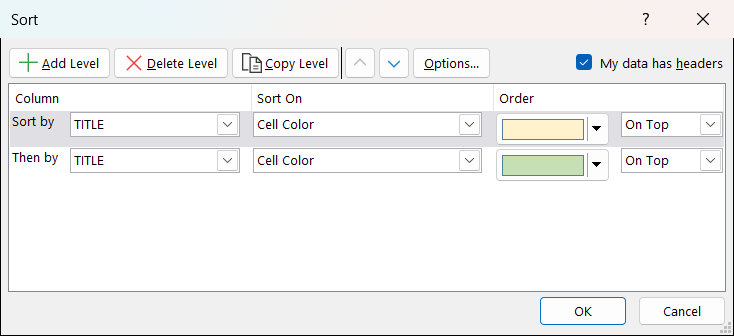
Once on this screen, repeat the process three times to select all the colors in your worksheet. The starting point is always “Add Level,” followed by selecting the color; in this case, the data includes headers due to how the database was created.
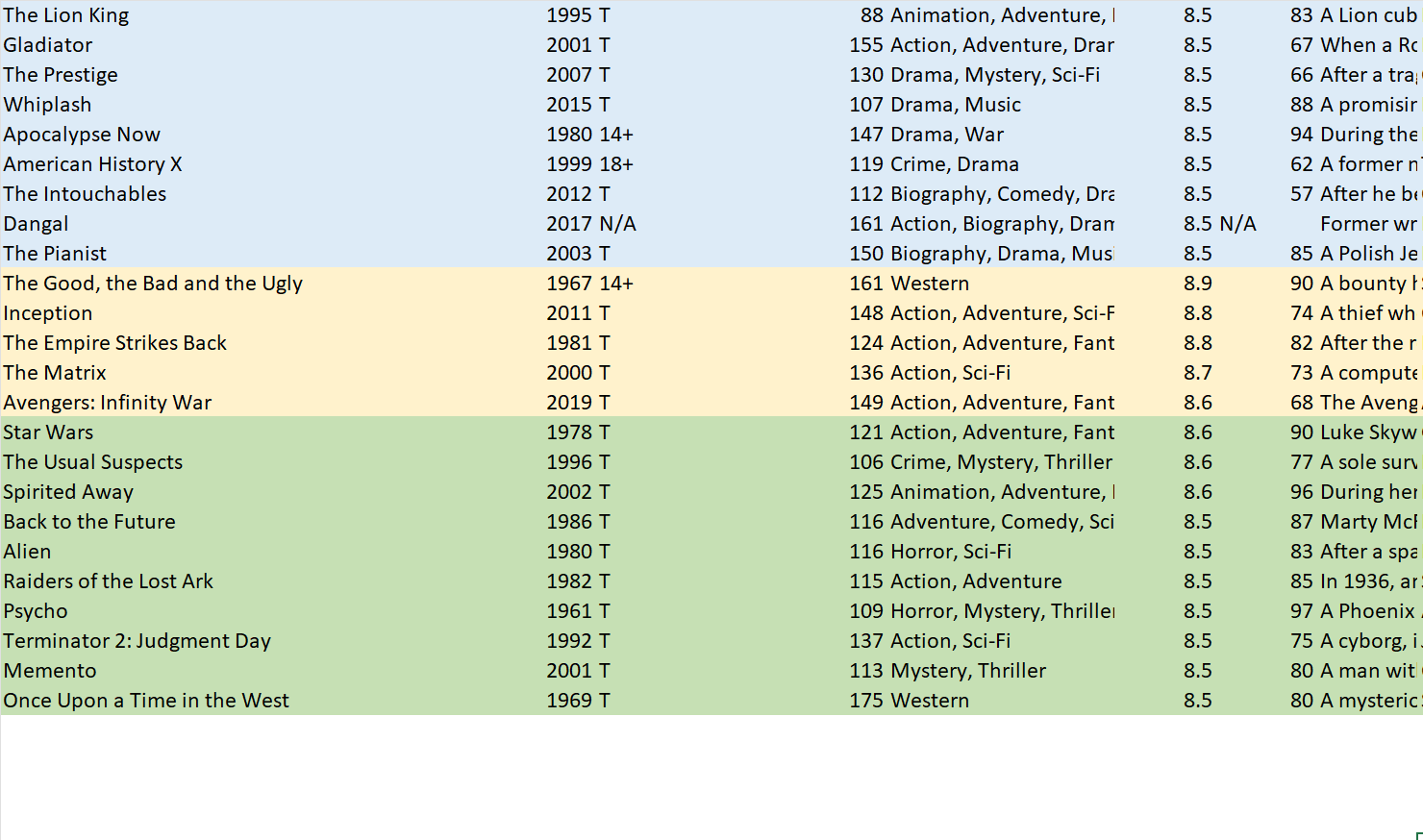
And there you have it, we’ve solved our problem by filtering our entire database by color. The same process can also be used for font color, for example, by filtering all cells with red text. The final scenario involves filtering by a conditional formatting icon, which is fairly rare.
Conclusion
With Sort and Filter you can order or filter a database by cell color, font color or conditional formatting icon. It helps when colors are already used to mark categories, even though a column with the category name is always more reliable.