
In this article, we’ll look at how to use the SQRT function to calculate the square root of a number. Fortunately, the process in Excel is quite simple and straightforward.
If you want to learn more about the importance of square roots in mathematics, I suggest you take a look at Wikipedia, since in this article we’ll go straight to the solution for a specific problem.
How to Calculate the Square Root in Excel Using a Formula
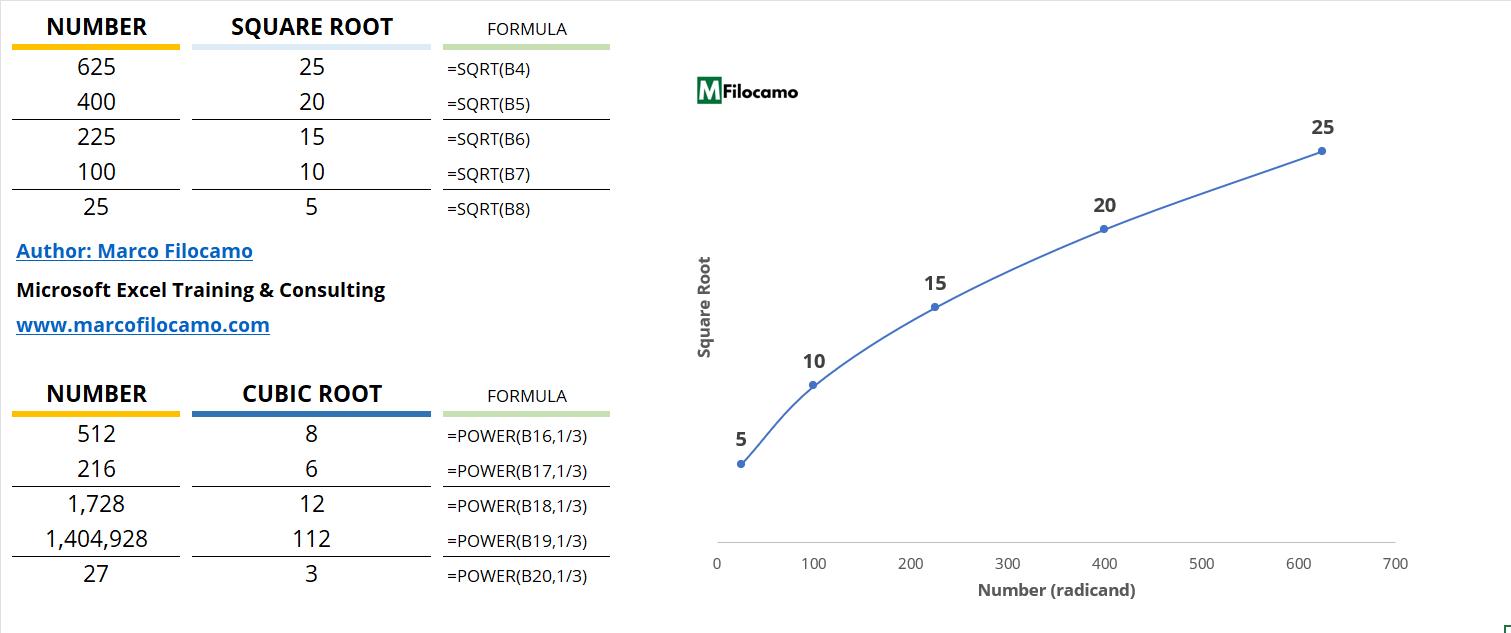
The easiest way is definitely to use the SQRT function. This function instantly calculates the square root of the number in question using the following format:
=SQRT(num)
So, if we wanted to find the square root of cell B4, as in this case, we would enter the following formula:
=SQRT(B4)
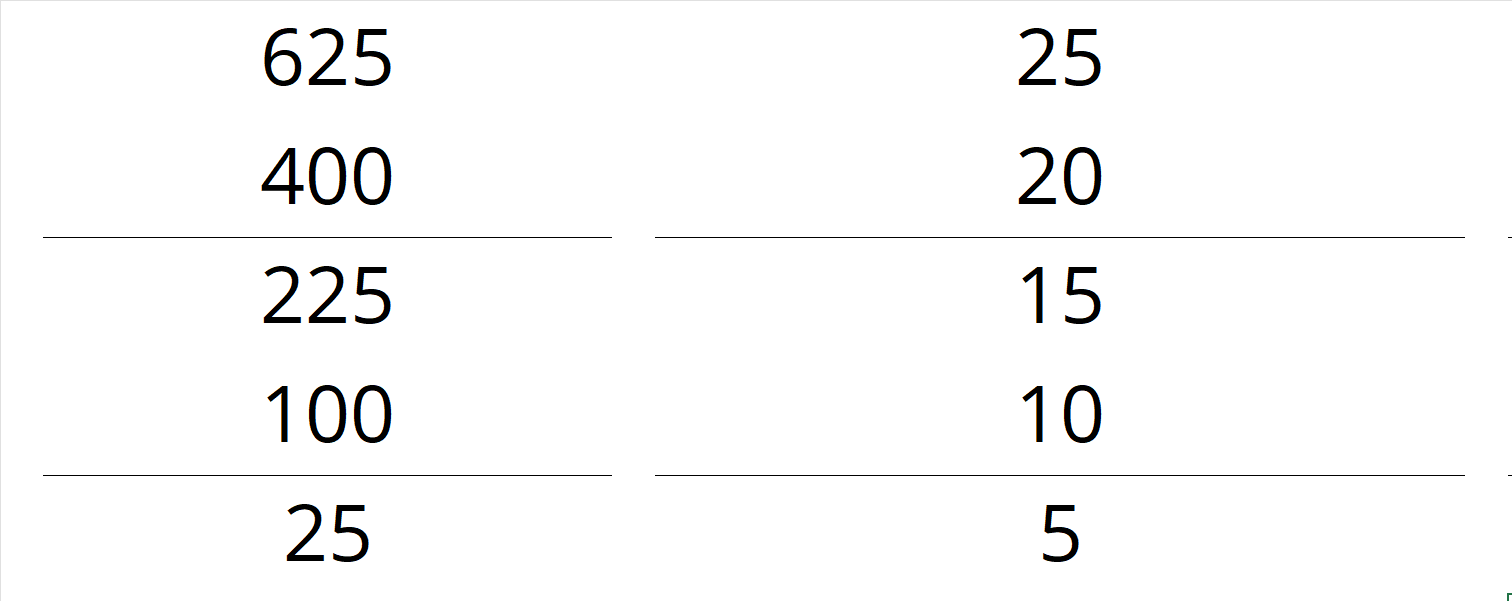
We can see the exponential progression in this graph, where the radicand increases significantly while the square root grows at a much more moderate rate. The values 25, 100, 400, and 625 for the radicand are relatively small, corresponding to the square roots shown in the graph.
If you encounter an error such as #VALUE!, check that the cell contains a number. If it is a number that was entered as text, you can use the NUMBERVALUE function to convert it automatically. For example, testing with cell F14:
=SQRT(NUMBERVALUE(F14))
How to Calculate a Square Root in Excel Without a Formula
We could also choose to calculate the square root without using a formula. Following the mathematical reasoning behind what a square root is and related powers, we know that a square root is a number raised to the power of 1/2. So 25^(1/2) = 5, and so on.
In Excel, this translates to a solution that would look like this, again for cell B4:
=B4^(1/2)
How to Calculate the Square Root of a Negative Number in Excel
In this case, we might want to calculate the square root of a negative number, such as -100. This calculation is not possible because the square root of a negative number does not exist. However, you may encounter negative numbers and want to convert them to positive numbers automatically; in this case, you can use the ABS (which turns negative numbers into positive ones) function. Let’s look, for example, at how to use this combination of functions for a hypothetical cell C14:
=SQRT(ABS(C14))
How to Calculate the Cube Root in Excel
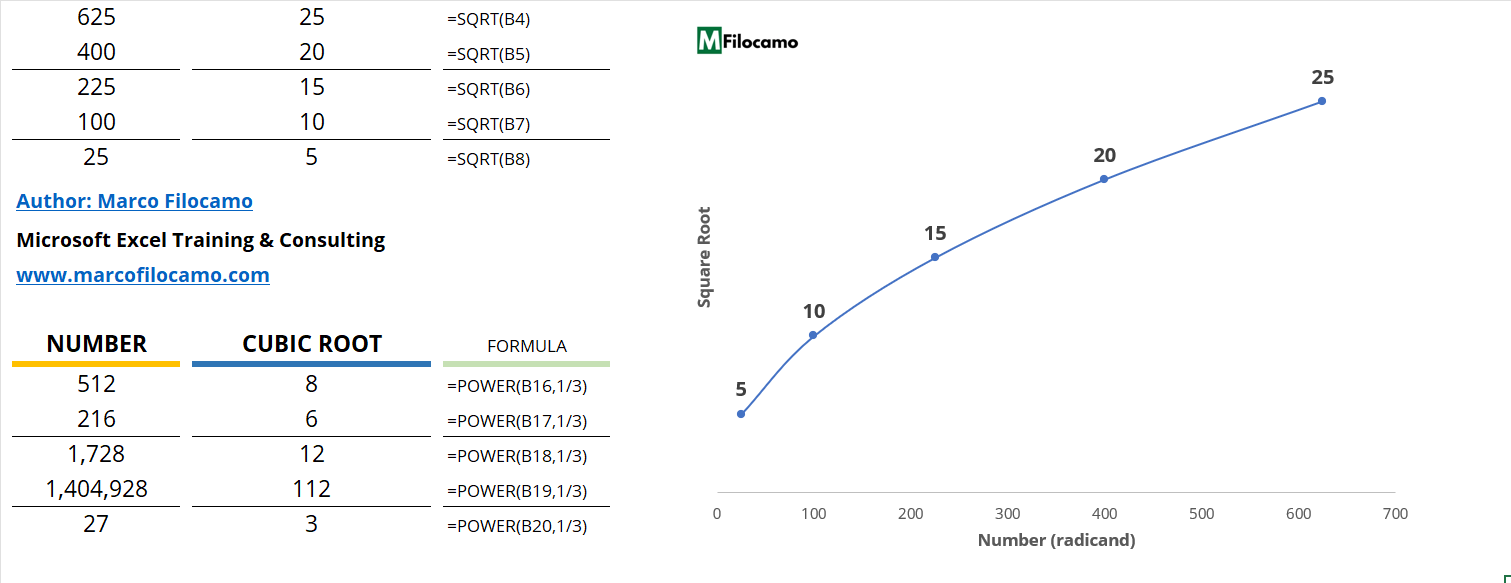
In some cases, the square root might not be enough. For example, you might want to calculate the cube root, but there isn’t a dedicated function in Excel for this specific purpose.
Of course, we could use a formula-free solution like the one above; for example, for cell C18, we’d simply need to slightly modify the formula by entering a 3 instead of a 2 to find the cube root:
=C18^(1/3)
The most useful and elegant method, however, is definitely using the POWER function. The function has a fairly simple syntax: first, we enter the number we’re interested in, followed by the exponent:
=POWER(number,power)
As you can imagine, the POWER function raises a given number to a power. For example, if we had the value 7 in D24 and wanted to raise it to the third power, we could do it this way (7*7*7 = 243):
=POWER(D24,3)
In the case of the cube root, the logic is reversed since we’ll need to enter 1/3. In cell D16, we see:
=POWER(D16,1/3)
The recommendation is to use the power function, as it makes the formula easier to read, even for others. It’s always best to avoid entering information manually into formulas, as it could be misinterpreted or incorrect.
Conclusion
In conclusion, we now know how to use the functions SQRT and POWER to calculate square roots, cube roots, and more in Excel. Using these same functions, we can easily find the power of a number, avoiding the need to write complex formulas and taking advantage of the specific functions already built into Excel.