
Using Microsoft Excel, you can calculate values such as percentage increase or percentage change quite easily. In this case, we can calculate historical revenue trends, compare figures to the previous year, or perform any other useful calculations, such as analyzing company financial statements. To calculate a percentage change, we need two numbers to determine any increases or decreases and their total amount.
Click the following link if you’re looking for how to calculate the percentage margin in Excel, rather than the percentage change.
Percentage Calculation in Microsoft Excel
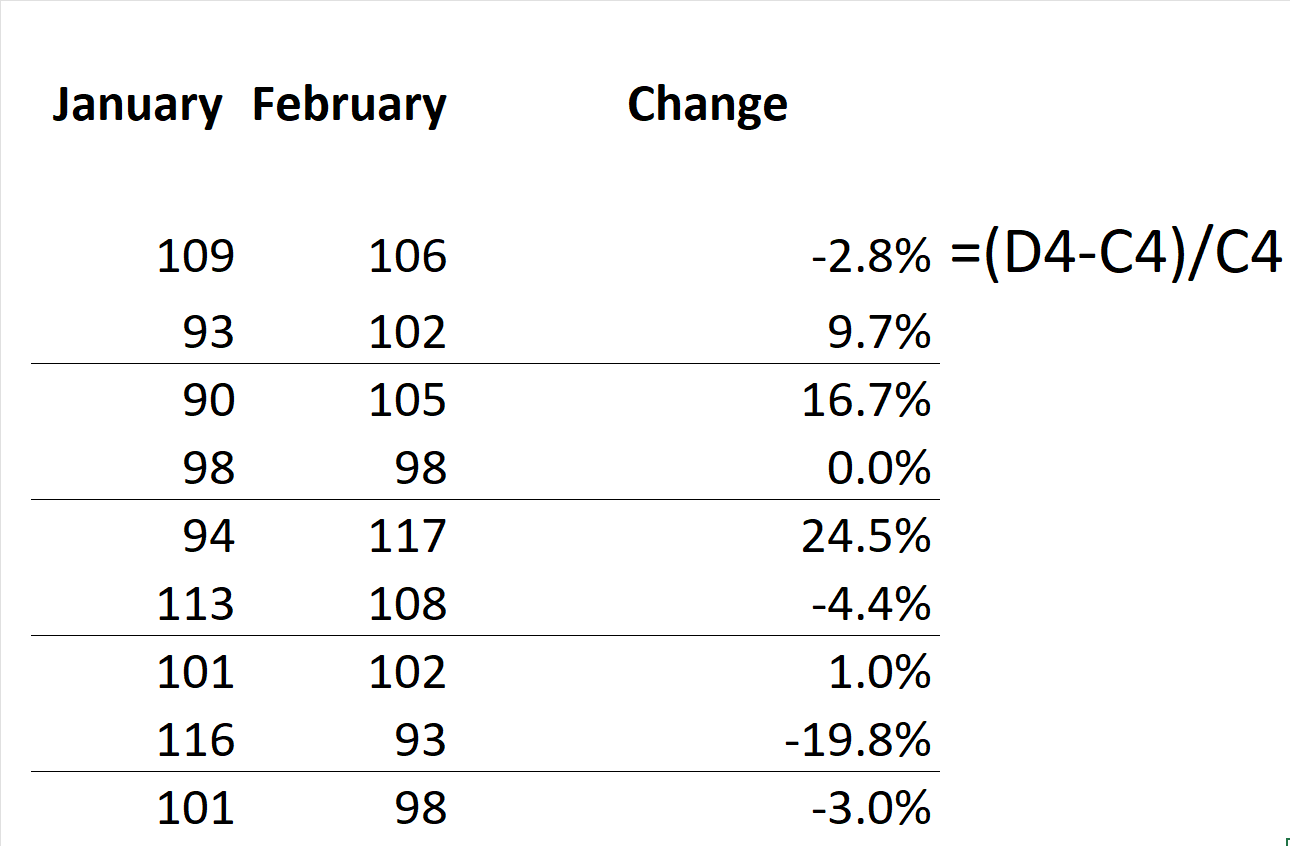
Fortunately, this is a fairly standard operation in Excel that does not require the use of formulas.
The general formula structure is as follows:
=([new_value]-[old_value])/([old_value])
Example: We have a set of values in the range C4:C12, corresponding to January, and in column D4:D12, corresponding to February. We want to calculate the percentage change for each value. As a general rule, it’s best to have the values in adjacent columns to avoid calculation errors. In this specific case, let’s consider cells C4 and D4 to calculate the first percentage change:
• [new_value] = D4
• [old_value] = C4
Practical formula for the example:
=(D4-C4)/C4
The Excel percentage change does not require any specific function, just a simple division. It’s crucial to remember to divide by the “old” value and not the most recent one to avoid errors. To try this on your own, you can download the following file, which contains the same example as in the article.
An extension of this calculation could also be the calculation of the cumulative change.
In this case, we might want to calculate the difference between:
• the sum of the sales figures for the first two values in the January column (C4 and C5)
• the sum of the sales figures for the first two values in the February column (D4 and D5)
The formula, using the same ranges as before, will be:
=(SUM(D4:D5)-SUM(C4:C5))/SUM(C4:C5)
If we then want to expand the formula to cover all reference rows up to row 12, we simply need to lock cells C4 and D4:
= (SUM($D$4:D5)-SUM($C$4:C5))/SUM($C$4:C5)
If you then want to calculate the absolute changes, simply use the ABS function to normalize the signs if they differ from one another.
Conclusion
The percentage change is the difference between the new value and the old value divided by the old value, and with SUM you can apply it to totals as well. Use ABS when you only need the size of the change, regardless of its sign.