
We can calculate the percentage margin in Microsoft Excel quite easily. Specifically, we’ll analyze a case study for the margin between costs and revenue as a percentage, which is one of the most common scenarios for this operation. If we have a product database, it can be useful to know which products generate the highest percentage margin to assess their profitability.
Calculating Percentage Margin in Excel
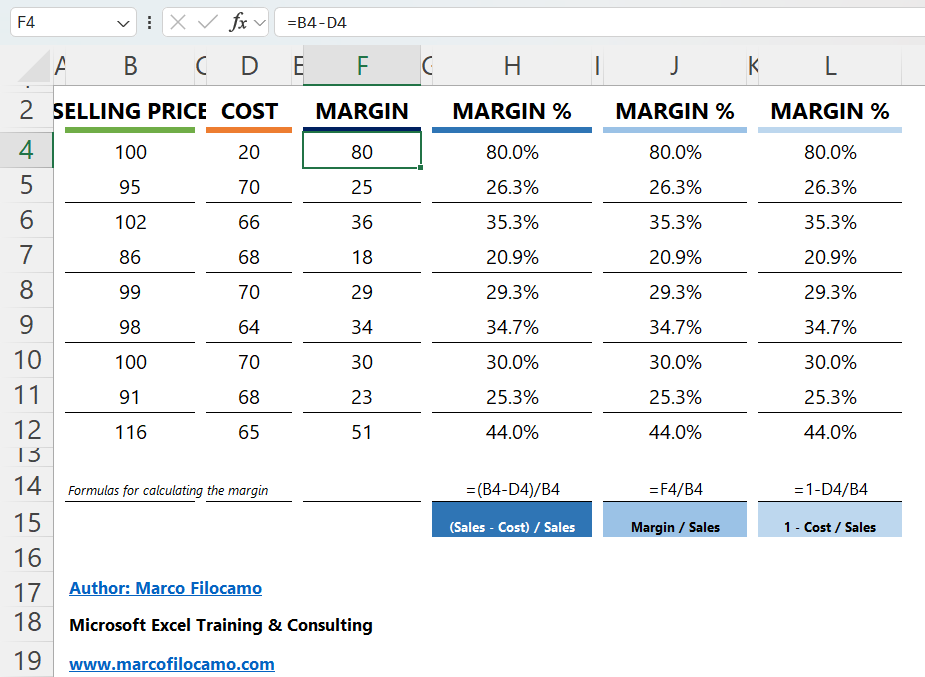
We can quickly calculate the percentage margin in Excel without using formulas.
First of all, we need to know how to calculate the margin. Generally speaking, Margin = Selling Price − Cost
At this point, we can find the percentage margin, which is equal to:
Percentage margin= ([sales_value]-[cost_value])/([sales_value])
Example: We have a set of values in the range B4:B12, corresponding to the selling price, and in column D4:D12, corresponding to the average production cost. We want to calculate the percentage margin for each value in Excel. Let’s consider the first case with cells B4 and D4:
• [sales_value] = B4
• [cost_value] = D4
Practical formula:
=(B4-D4)/B4
To improve the display, we might want a blank value instead of an error such as #DIV/0! or #VALUE! if one of the values is incorrect. In this case, we add a formula segment using the IFERROR function.
Practical formula:
=IFERROR((B4-D4)/B4,"")
Calculating the Percentage Margin in Excel When You Know the Margin
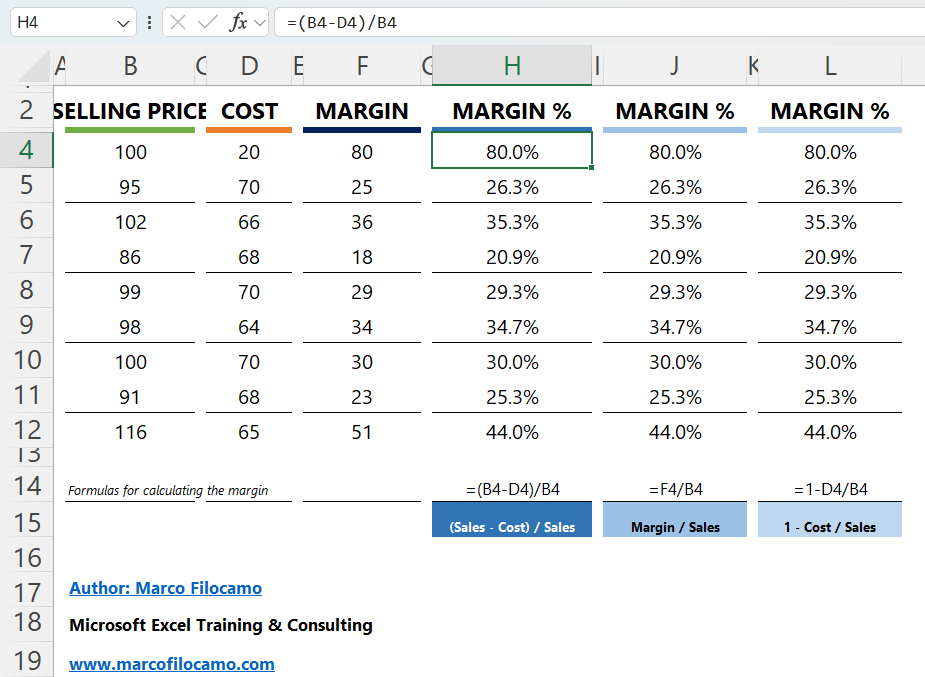
If we want to calculate the percentage margin and already have the margin, the calculation is even simpler since we simply need to divide the margin by the selling price.
In this specific case, since the margin is in cell B4, we can perform the following operation:
=F4/B4
As we can see, the result is exactly the same as in the previous case.
Calculating the Percentage Margin in Excel as the Ratio of Cost to Sales
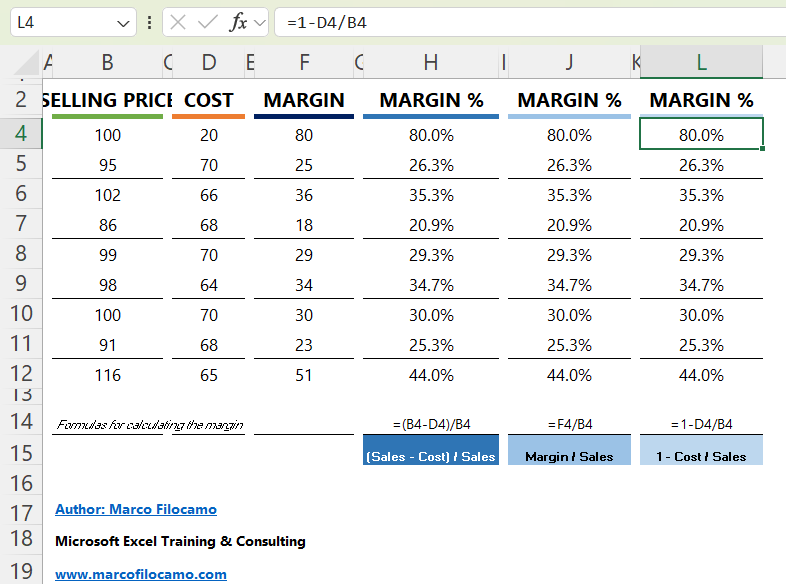
The third and final method for calculating the percentage margin is simply a slight variation of the first method. In this case, we calculate the ratio of cost to selling price, which is then subtracted from one to obtain the percentage margin.
As shown in the image, the formula is:
=1-D4/B4
In Excel for Microsoft 365 you do not need to copy the formula down: a single dynamic array formula calculates the margin for every row at once. Write =(B4:B12-D4:D12)/B4:B12 in H4 and Excel spills the nine results below it.
Even better, convert the data into an Excel table (Ctrl+T). The formula then uses the column names, for example =([@[SELLING PRICE]]-[@COST])/[@[SELLING PRICE]], it is filled in for the whole column automatically, and every new product you add gets its margin without touching the formula.
Conclusion
The percentage margin is the difference between sales and cost divided by sales, and you can also get it as one minus the ratio of cost to sales. Wrapping the formula in IFERROR keeps the column clean when a sales value is missing or zero.