
Using Microsoft Excel, you can calculate a person’s age relative to today (or a specific date) using a combination of formulas. You don’t often encounter this problem, but it’s extremely tedious to do without using any formulas, which is why this article was written.
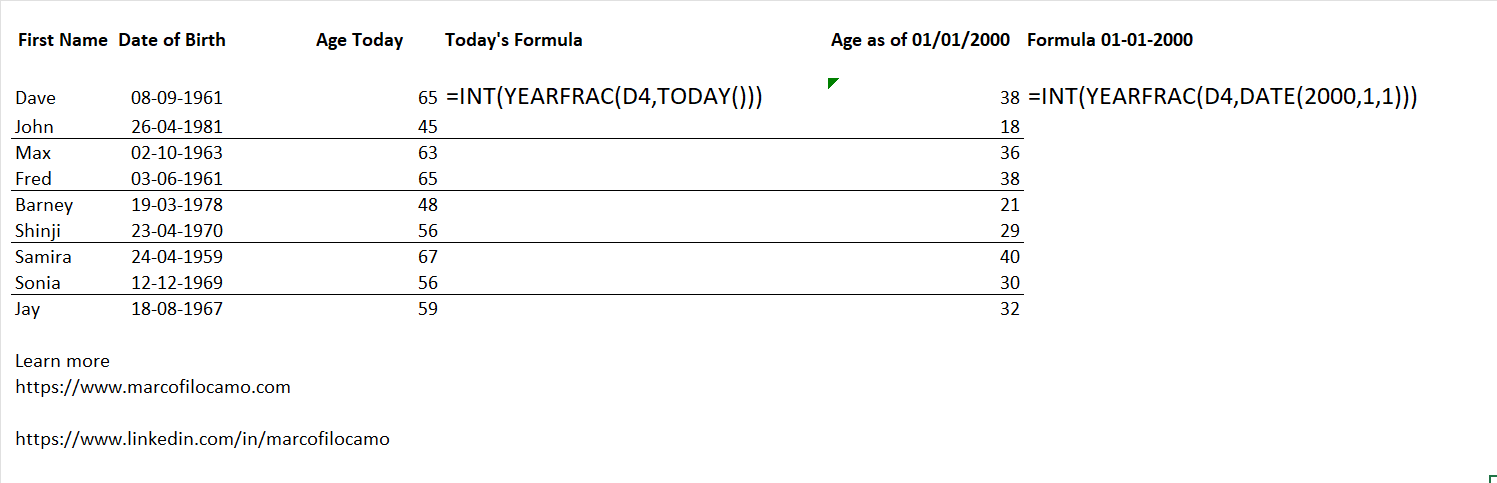
Here’s how to do it, using the functions INT, YEARFRAC, and TODAY.
In this case, X is the cell reference containing the full date in the dd/mm/yyyy format (for example, 03/12/2016).
General formula for calculating age:
=INT(YEARFRAC([X],TODAY()))
Calculate age in Microsoft Excel from the date of birth to today
First example: We have a series of values in the range C4:C12, corresponding to the names of different people, and in column D4:D12, corresponding to their dates of birth. We want to calculate each person’s age relative to today. Let’s consider, in the first case, cell D4:
– [X] = D4
Practical formula:
=INT(YEARFRAC(D4,TODAY()))
Calculate Age in Microsoft Excel from a Date of Birth to a Specific Date
Second example: Let’s use the same values as before, but in this case, we’ll calculate their age as of the first day of 2000. To calculate this difference, we’ll also use the function DATE (year,month,day):
– [X] = D4
– [year] = 2000
– [month] = 1
– [day] = 1
Practical formula:
=INT(YEARFRAC(D4,DATE(2000,1,1)))
Conclusion
INT and YEARFRAC calculate a person’s age in completed years: use TODAY to get the age as of today, or DATE to calculate it at a specific date. The formula updates automatically every time the file is opened.