
You can calculate discounts in Excel without using formulas or functions. In this article, we’ll cover three different scenarios involving discounts. Specifically, we’ll see how to:
- Calculate the discount. We know the final (discounted) selling price and the initial (list) selling price
- Calculate the final selling price (discounted). In this case, we know the initial selling price (list price) and the discount
- Calculate the original selling price (list price). We can calculate it using the discount and the final selling price (discounted)
Let’s first look at the discount scenario to see how to calculate a discount using an Excel workbook.
Calculating a Discount in Excel
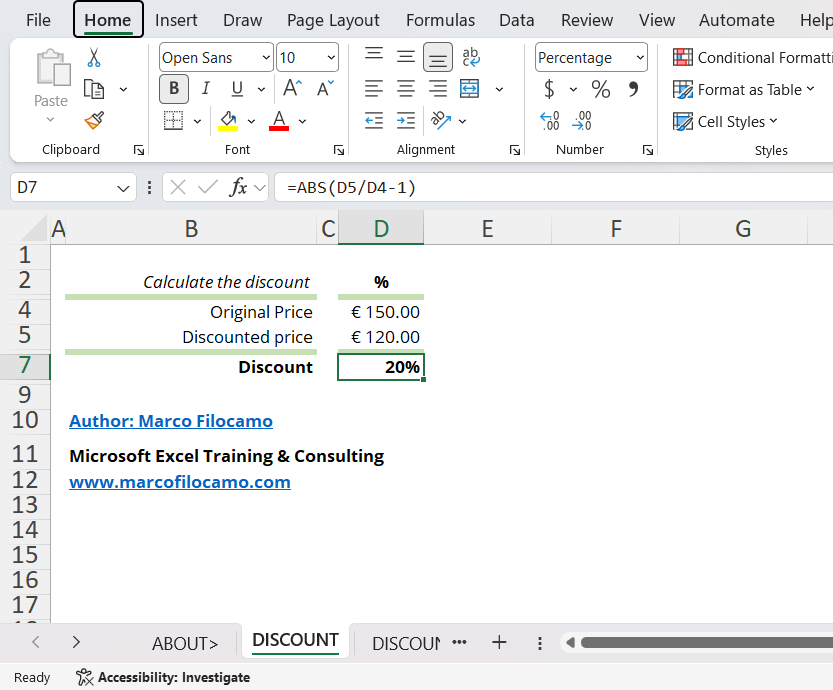
As we mentioned, in this case we have two different prices:
- Original price (list price): D4 = €150.00
- Final selling price (discounted): D5 = €120.00
To calculate the discount, simply perform the following calculation:
=ABS(D5/D4-1)
The ABS function converts the values inside the parentheses to absolute values, so -20% becomes 20% in this case.
Calculating the Discounted Price in Excel
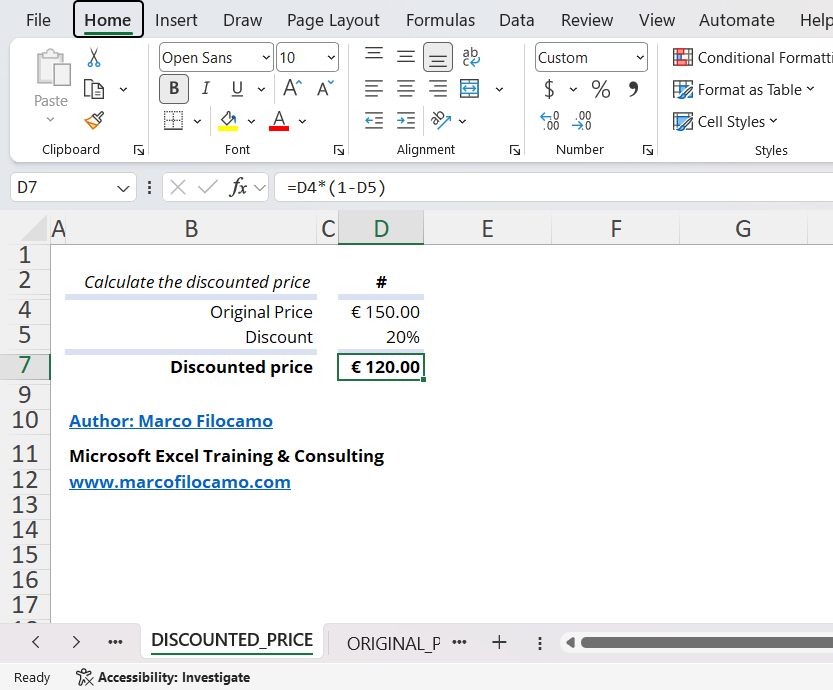
In this case, we want to calculate the final discounted price. We therefore have the following:
- Initial price (list price): D4 = € 150,00
- Sconto: D5 = 20%
To calculate the discount, simply perform the following calculation:
=D4*(1-D5)
The result will be €150.00 * 80% = €120.00, as shown in cell D7.
Calculating the Initial Price
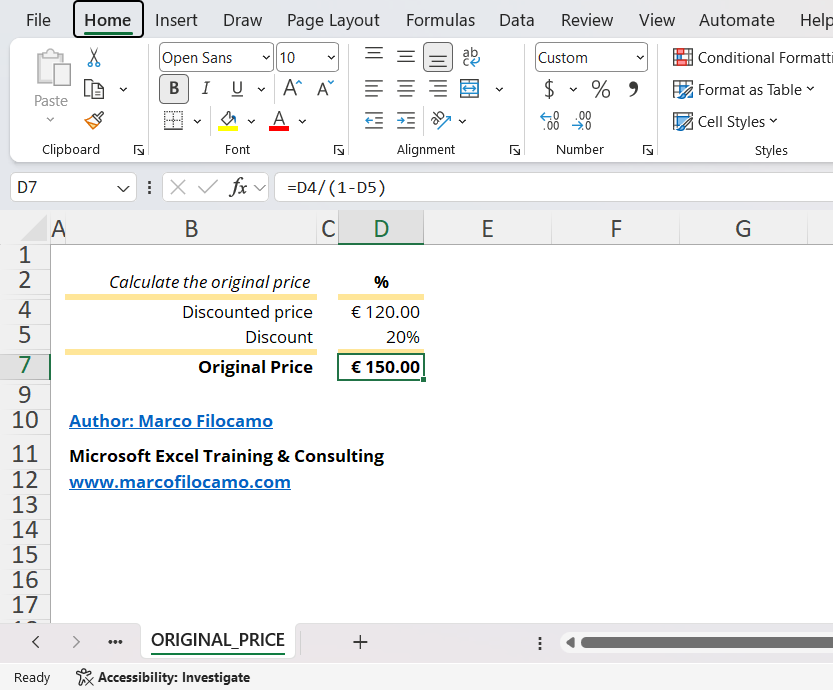
As a final example, let’s find out how to determine the original list price. We’ll use the following data:
- Final selling price (discounted): D4 = €120.00
- Discount: D5 = 20%
To calculate the initial list price, we’ll need to enter the formula:
=D4/(1-D5)
The result will be €120.00/(1-20%) = €120.00/80% = €150.00.
Conclusion and download the file to calculate the discount with Excel
Depending on the different scenarios, we’ve seen how to find the values using simple operations without having to use complex functions. By clicking the button below, you can download a file to calculate all the values on your own.