
Do you want to calculate a company’s tax liability and perhaps allocate a portion of the profit to charitable projects? The problem is that your calculation in Excel isn’t working because it’s reporting a circular reference. How can we fix this?
This article will discuss a simple scenario based on a potentially real-world situation. We have a company with a certain amount of revenue and expenses, as well as a tax rate of 30%. We want to allocate 10% of what remains after taxes to charity. How can we solve this?
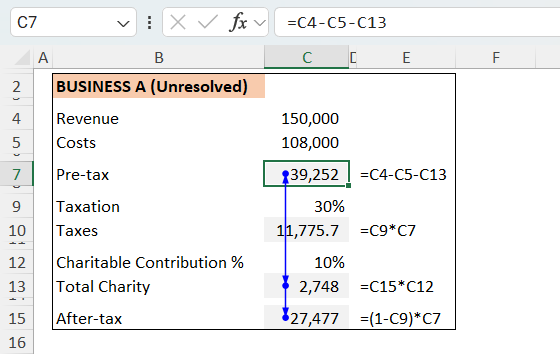
There’s a circular reference preventing us from getting the result we expect. The problem is that we need to calculate taxes while already including the value of the charitable donation, without knowing how much it will amount to, since the post-tax amount is clearly the last value in the table.
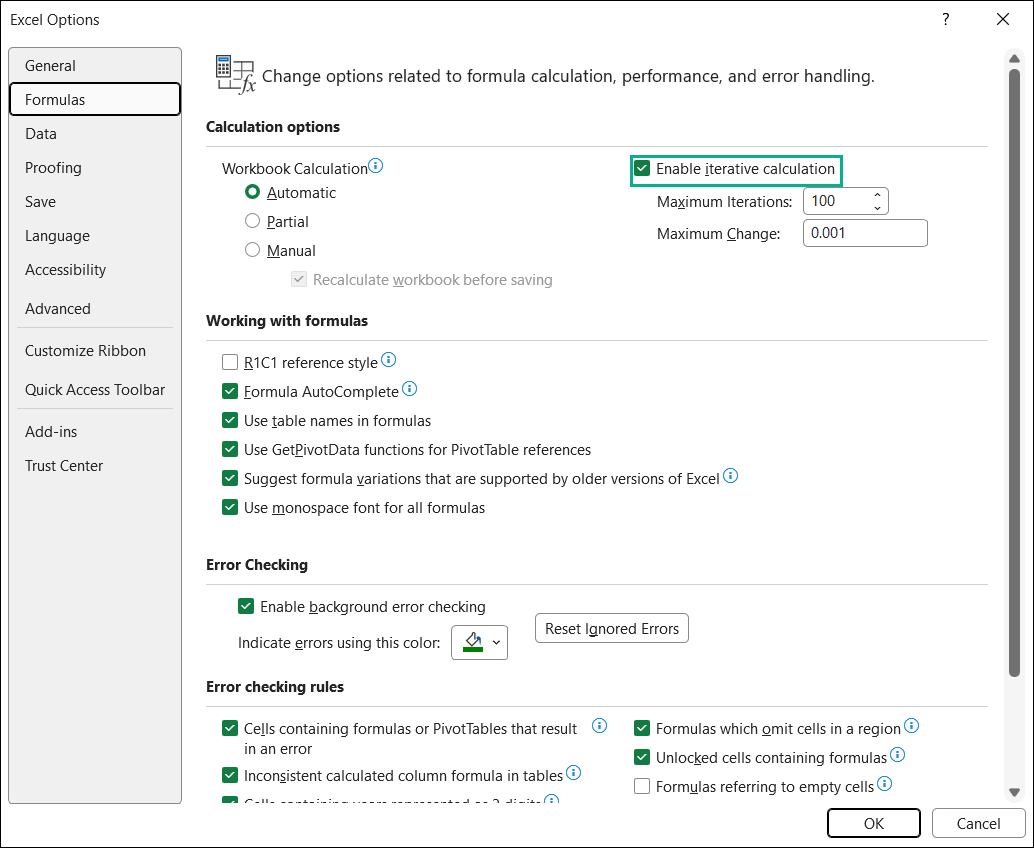
To resolve this, we need to click File -> Options -> Formulas and check the box for iterative calculation, as shown in the image.
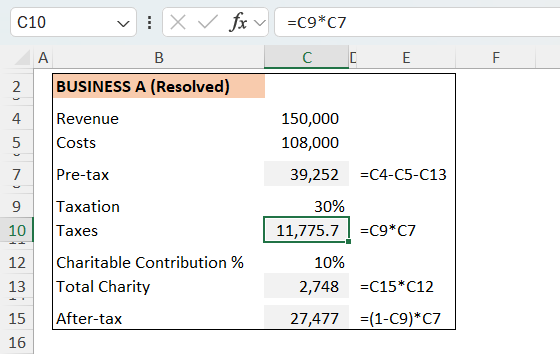
By checking this box, Excel is able to calculate the file correctly, and we can see that the charity amount is €2,748. This type of calculation is very useful for modeling or resource allocation, as in this case.
Conclusion
A circular reference is not always an error: when a calculation really depends on its own result, as with taxes and charity donations, you can enable iterative calculation in Excel Options. Excel then repeats the calculation until the result is stable.