
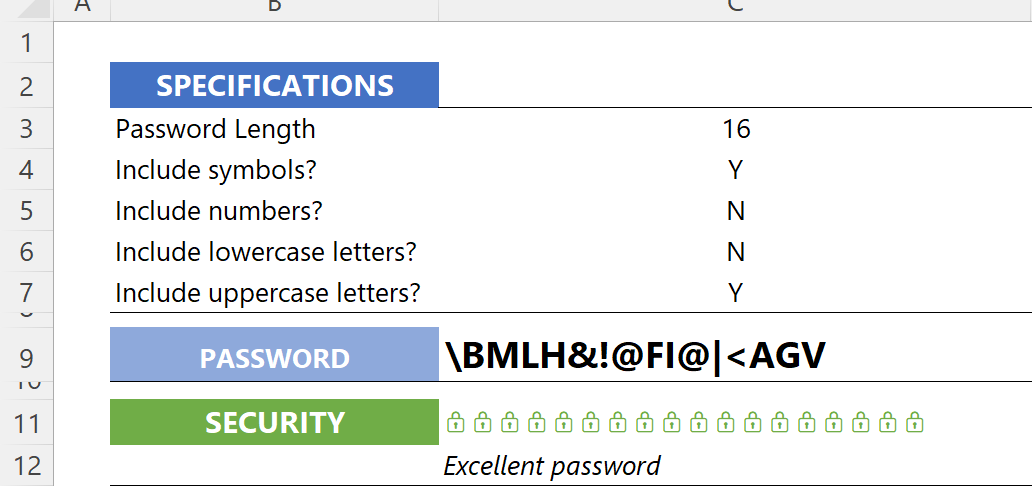
In this guide, we’ll show you how to generate passwords in Excel, the file is compatible with Excel for Microsoft 365 or Excel Online, and you can download it directly by clicking the button below!
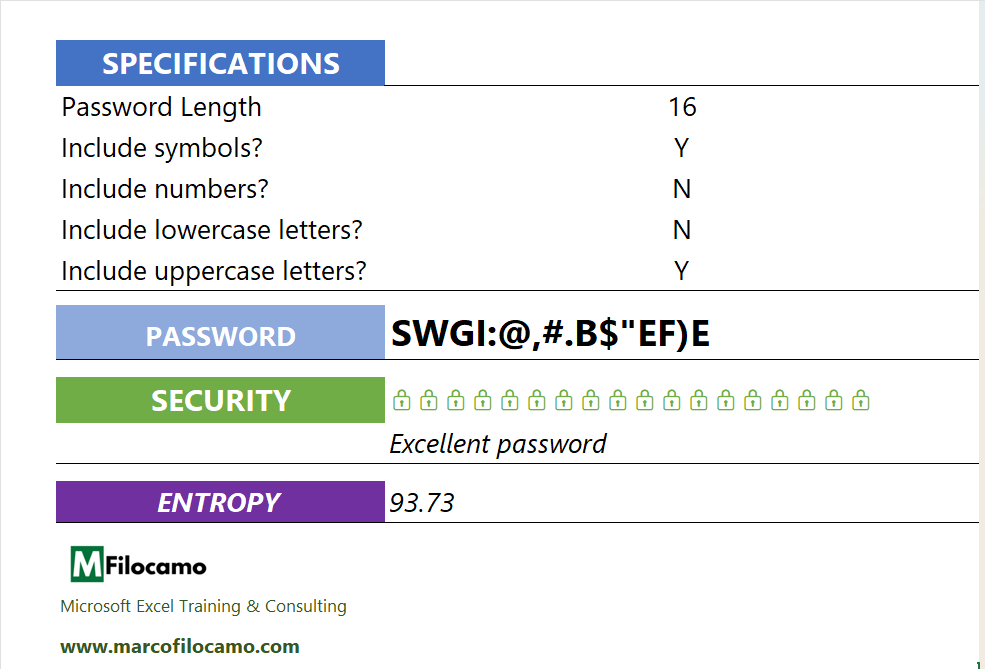
To copy the generated password, simply copy it (CTRL+C) and paste it as a value (CTRL+ALT+V). A new password will be generated every time you change the parameters.
A necessary technical disclaimer: This guide explains, step by step, how to create a password generator in Excel. Depending on certain user-defined parameters, the file will generate a sequence of characters associated with a corresponding entropy score to indicate whether the sequence could potentially be used as a password. Entropy is a measure (in bits) used to determine how difficult it is to crack the password, based on the following rule:
ENTROPY = PASSWORD_LENGTH*LOG2(POSSIBLE_CHARACTERS)
The higher this value, the harder it will be to crack the password, one additional bit doubles the number of attempts required to crack the entered password, so generally speaking, it’s better to include many characters in the initial pool and choose longer passwords for greater security.
Generating a truly random password is very complex; in this case, we’ll create a pseudo-random password using the RANDBETWEEN function in Excel. We’ll also use the entropy calculation as a proxy to assess how secure individual passwords are. The topic is quite technical, but it’s enough to know that the higher the entropy, the more secure the password will be. I’d like to thank Federico Leo Redi for helping me create the file, particularly for highlighting some technical aspects that shouldn’t be overlooked when discussing such broad and complex topics.
If, instead of passwords, you want to generate random numbers with Excel, you can click here.
The input data for generating passwords with Excel
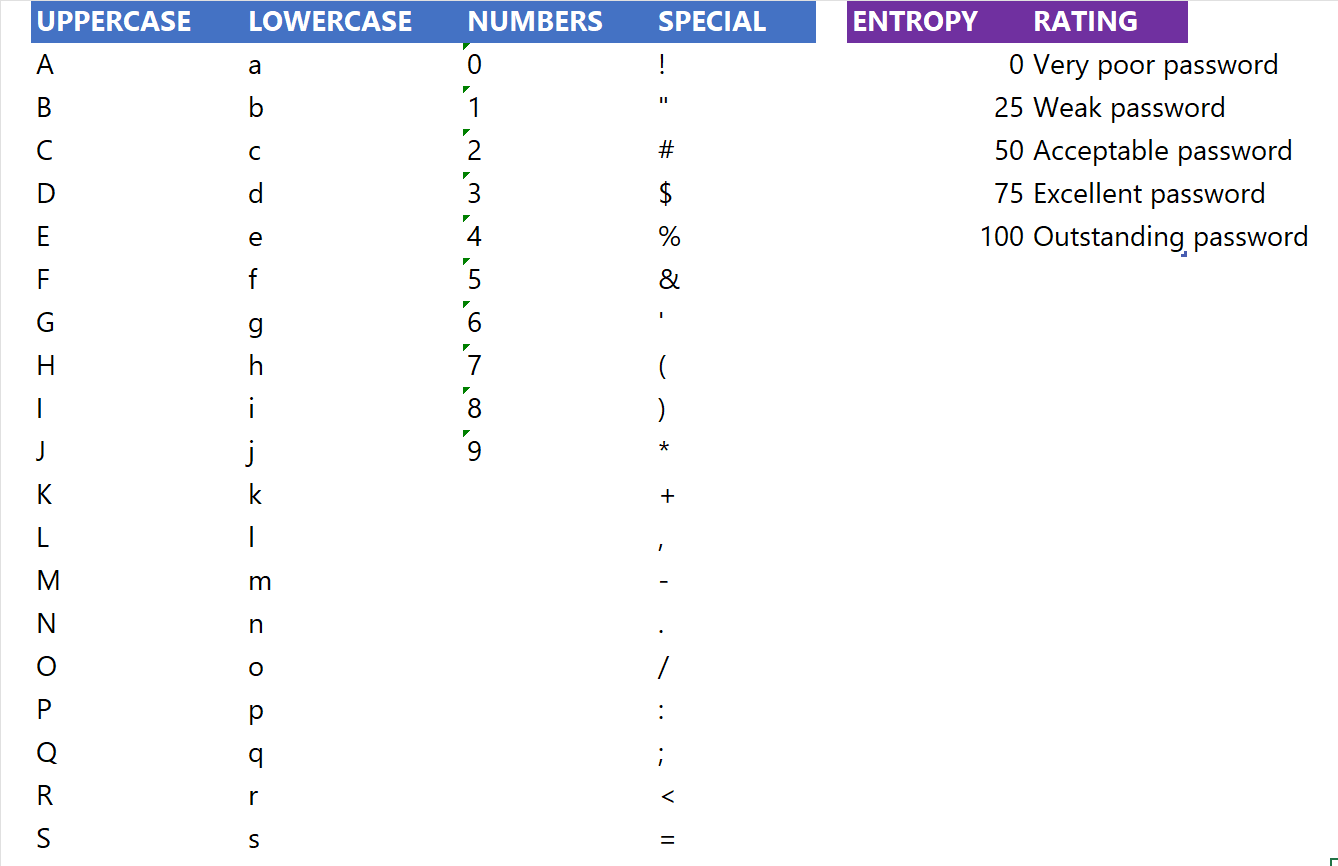
We need two different datasets to generate passwords with Excel with a good degree of flexibility. In this case, we have:
- Table with individual characters: these are divided into symbols, single digits, lowercase letters, and uppercase letters
- Table showing a rating based on the entropy value generated by the sequence. If less than 25, very poor; if less than 50, weak; and so on
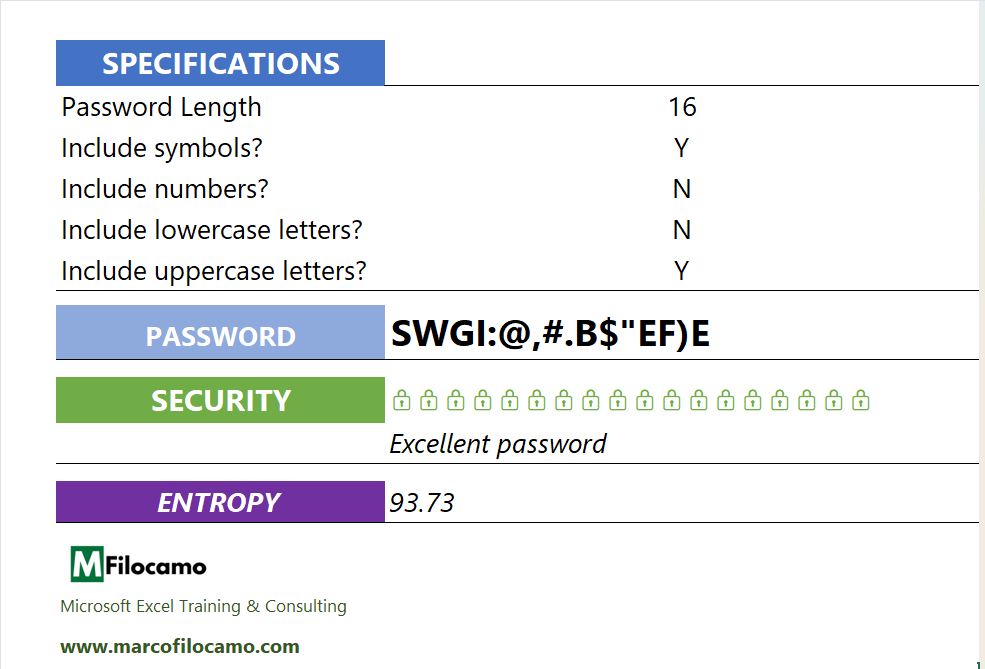
We also have some user-defined specifications:
- Password length: a variable number of characters, from 4 to 24
- Include symbols, numbers, lowercase letters, and uppercase letters: in each case, you can choose to include them (Y) or not (N)
Both the password length and the individual options use data validation: in the first case, it must be an integer between 4 and 24; in the second case, you can only enter Y or N in cells C4 through C7
How to Generate Random Characters in Excel
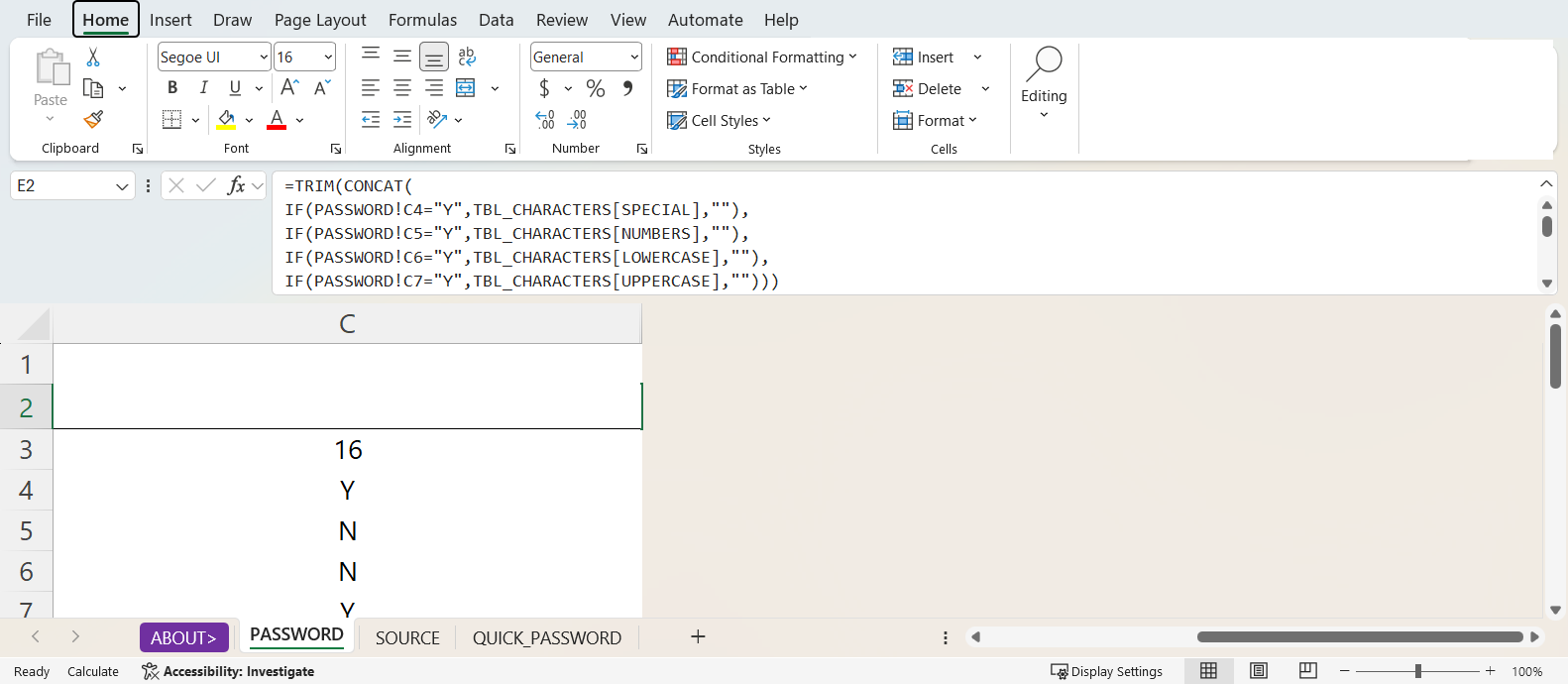
Random characters for the password are generated automatically based on the user’s individual selections. In this case, the formula will be:
=TRIM(CONCAT(
IF(PASSWORD!C4="Y",TBL_CHARACTERS[SPECIAL],""),
IF(PASSWORD!C5="Y",TBL_CHARACTERS[NUMBERS],""),
IF(PASSWORD!C6="Y",TBL_CHARACTERS[LOWERCASE],""),
IF(PASSWORD!C7="Y",TBL_CHARACTERS[UPPERCASE],"")))
Essentially, we’re concatenating all the individual values based on the user’s selections. If I enter Y in C4, then we’ll have special characters. If I enter N, we won’t have special characters, and so on.
TRIM and CONCAT are necessary because the first removes any spaces that may have been included from the table, while the second allows us to have everything in a single cell.
Note: We could also have considered defining a single name for each option instead of retrieving the data from a table.
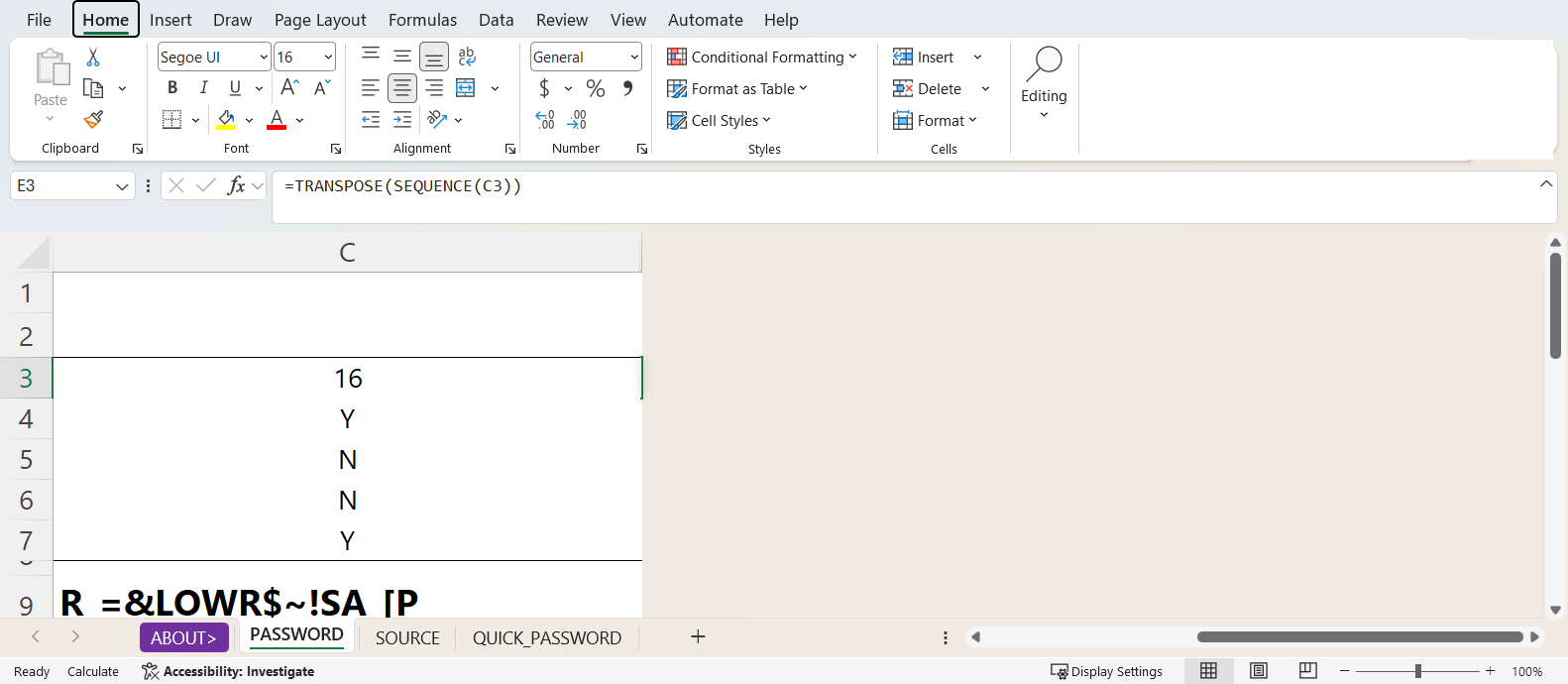
At this point, we need to determine the number of characters we need:
=TRANSPOSE(SEQUENCE(C3))
The function SEQUENCE creates a sequence of numbers. For example, SEQUENCE(5) returns 1, 2, 3, 4, 5 in 5 different cells. TRANSPOSE allows us to display this sequence horizontally. Using the value in C3, this formula returns a number that varies depending on the user’s choice.
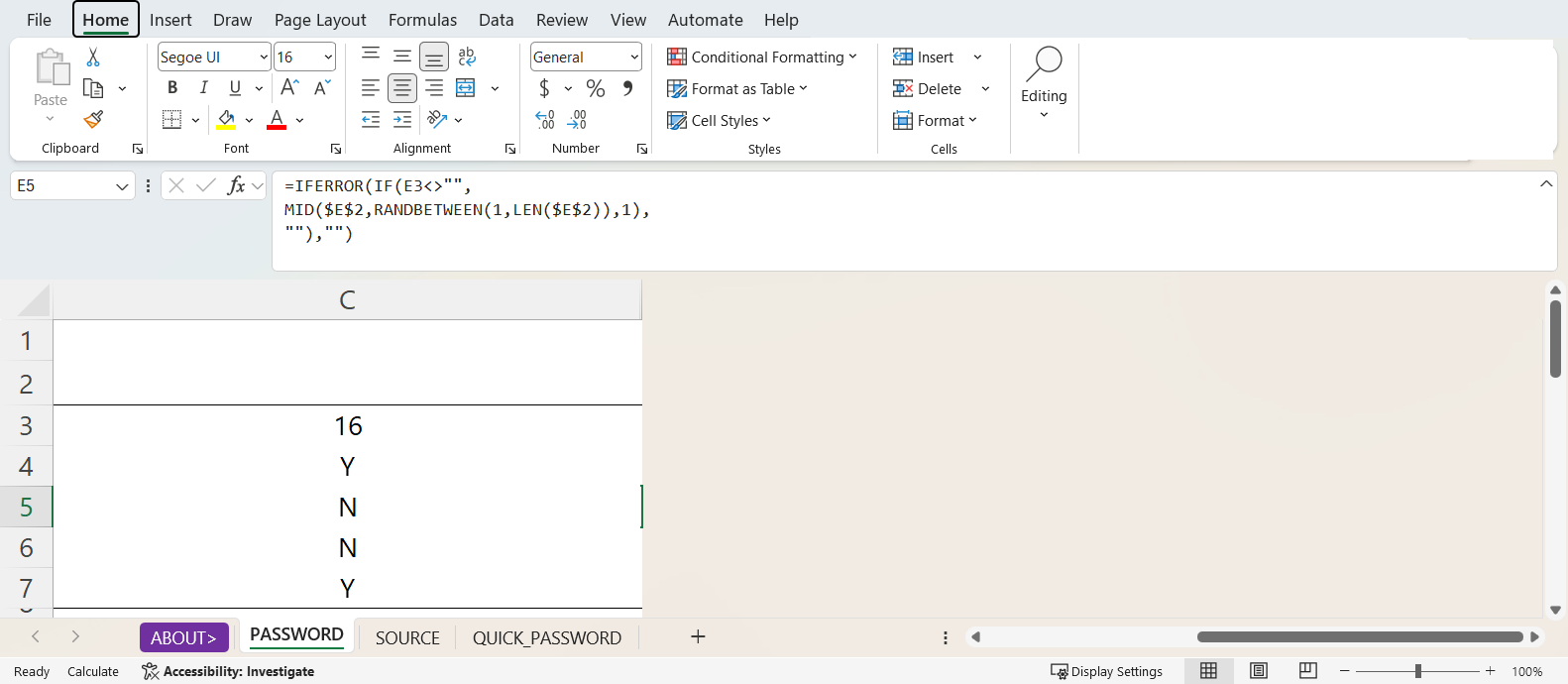
Now let’s see how we can generate a single random value; the formula then repeats down to cell AB5 (since there’s a maximum of 24 characters per password):
=IFERROR(IF(E3<>"",
MID($E$2,RANDBETWEEN(1,LEN($E$2)),1),
""),"")
In this case, IF E3 (the number obtained from SEQUENCE) is blank, then we leave it blank. If, on the other hand, it is not blank (and therefore SEQUENCE is present), then we use MID:
- E2 is the total character pool
- RANDBETWEEN(1,LEN($E$2)) means we take a random number between 1 and LEN from E2. LEN gives us the total number of characters in our initial pool, so we could obtain the first as well as the last value and all those in between, in a pseudo-random manner
- The final 1 indicates that we want to extract a single character
Since, unfortunately, there is no actual iteration in the RANDBETWEEN function, we’ll have to repeat the same function from E5 to AB5, as mentioned.
How to Generate Passwords in Excel
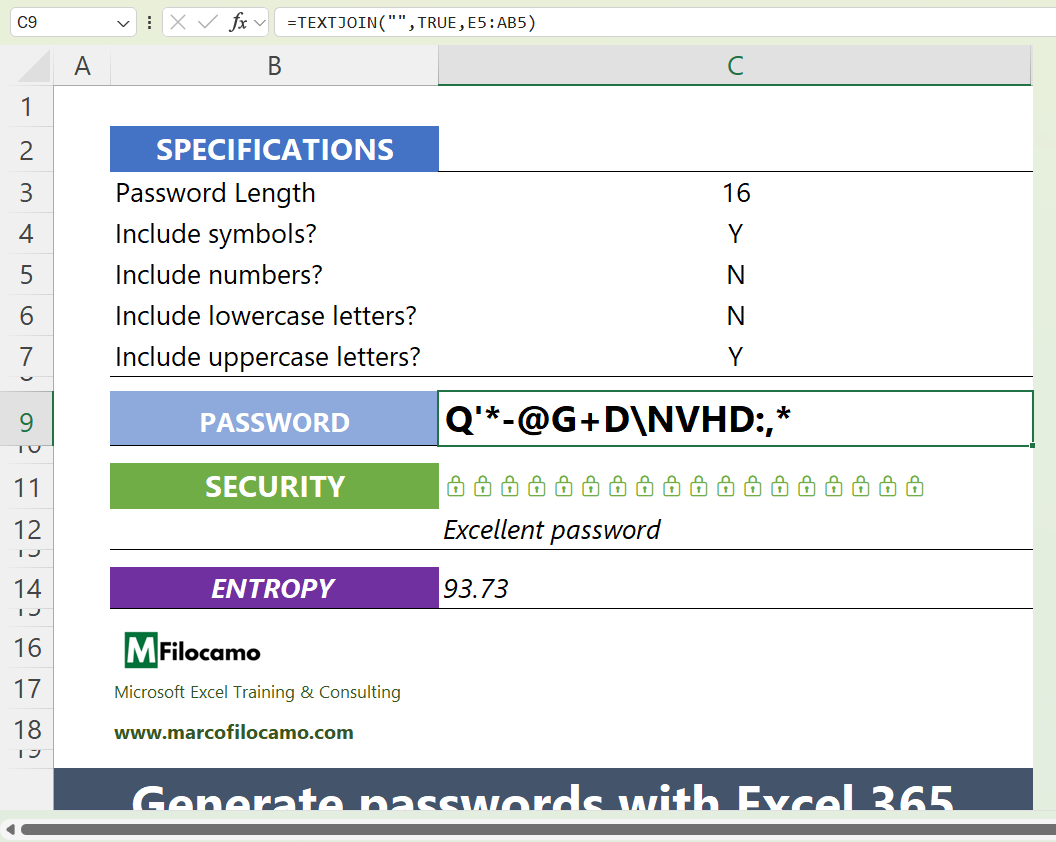
At this point, we have all the values we need to generate the password:
=TEXTJOIN("",TRUE,E5:AB5)
TEXTJOIN takes all characters (except for empty cells) from E5 to AB5 and returns our sequence exactly as we want it.
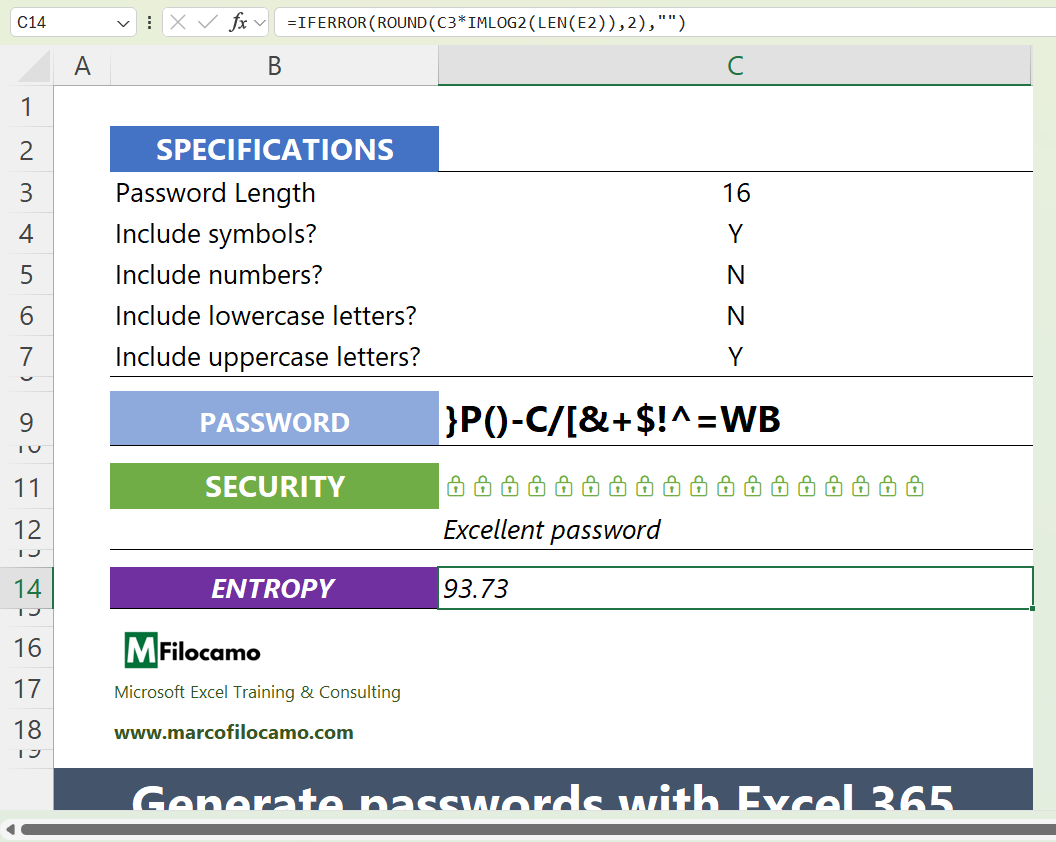
Now let’s calculate the entropy in a dedicated cell so we can view it more easily:
=IFERROR(ROUND(C3*IMLOG2(LEN(E2)),2),"")
C3*IMLOG2(LEN(E2)) calculates the entropy, since C3 is the number of characters in the password and LEN returns the total character pool. IMLOG2 returns the base-2 logarithm, which is necessary to correctly calculate the final value. We then see that the value is rounded using ROUND for display purposes; the final 2 indicates that we are only interested in the first two decimal places. If the value were an error, we would have an empty value.
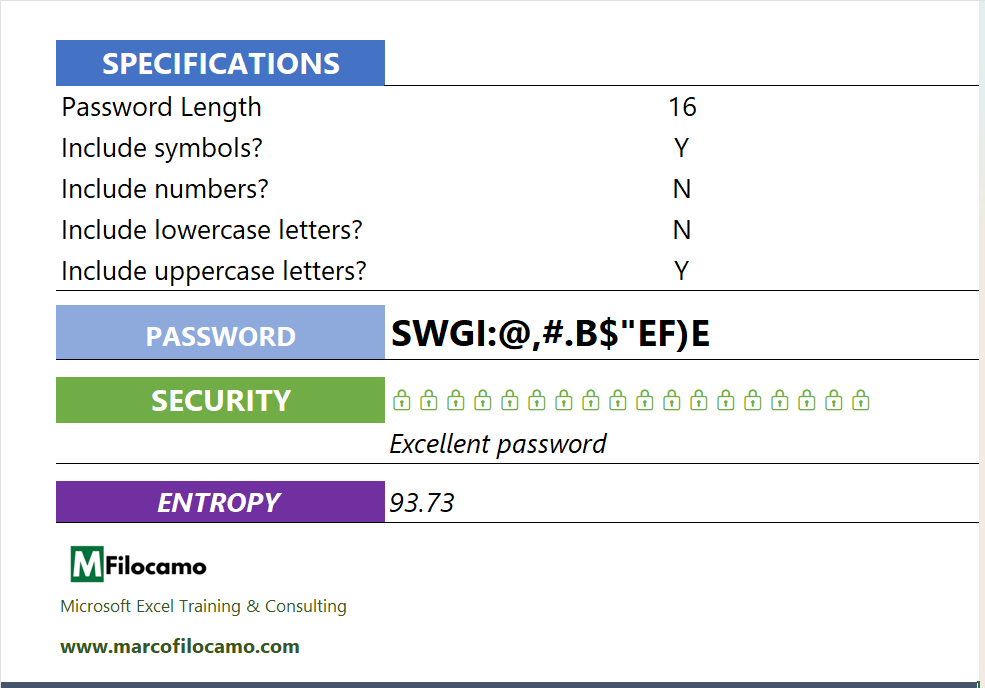
Now let’s see how to display the padlocks, which symbolize password security:
=IFERROR(REPT(UNICHAR(128274),C14/5),"")
UNICHAR is the Excel function we need to use Unicode characters within the formula. There’s a great collection on Vertex42 that I use often; in this case, we’ve taken the padlock symbol and want it to be repeated a certain number of times. This is where the function REPT comes in handy, as it allows us to repeat a specific character a specific number of times, in this case, the entropy value in C14, divided by 5 to improve the display.
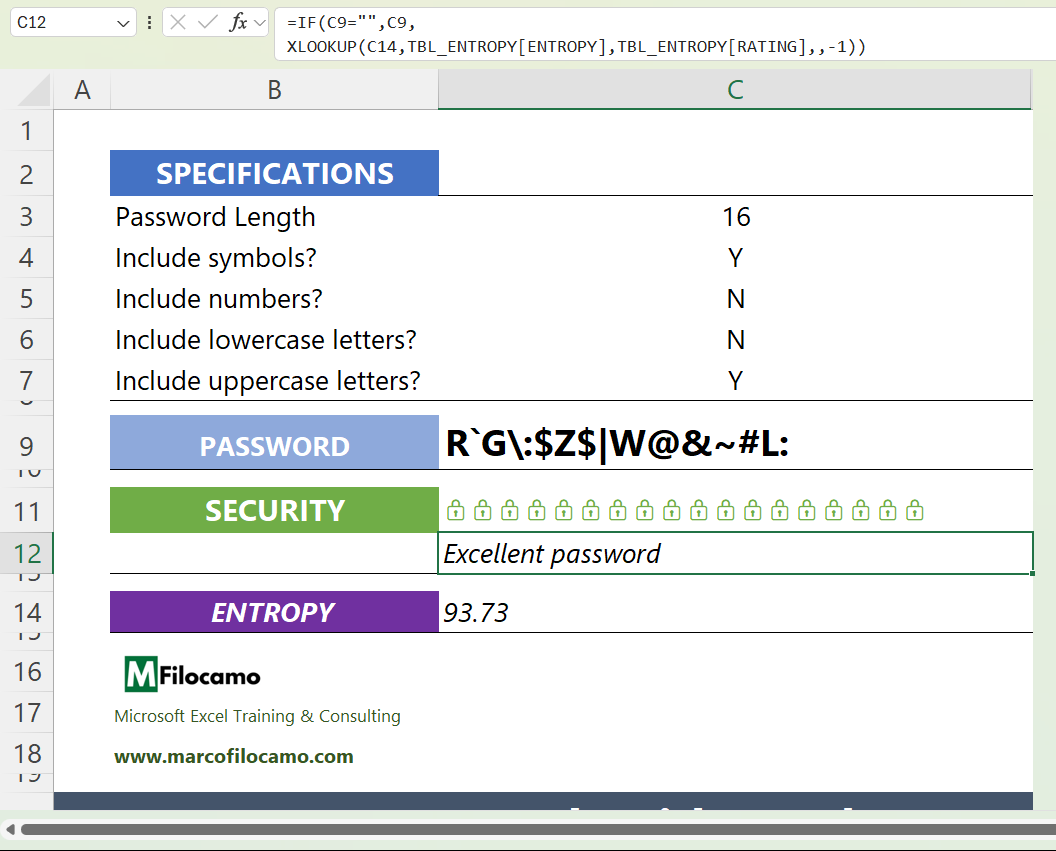
Let’s also add a brief comment to the password, related to entropy:
=IF(C9="",C9,
XLOOKUP(C14,TBL_ENTROPY[ENTROPY],TBL_ENTROPY[RATING],,-1))
If C9 is empty, we insert an empty string. XLOOKUP searches for C14 among the entropy values and returns the rating; the -1 is used to obtain the closest value (equal to or lower than) the calculated entropy.
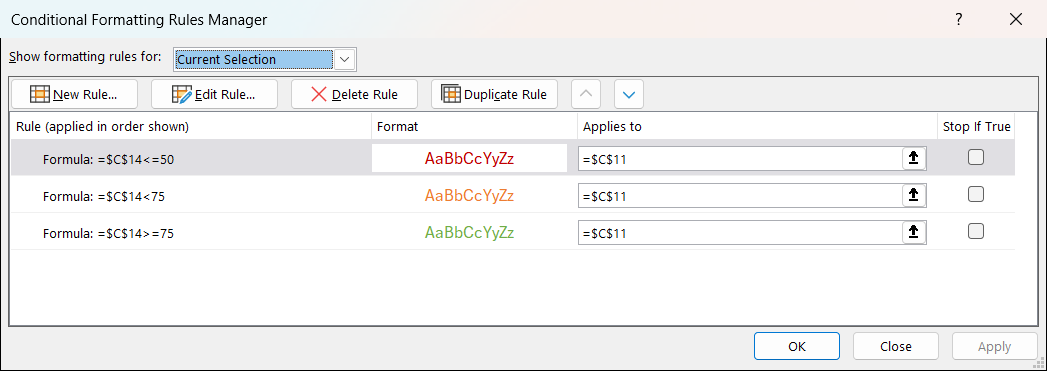
For visual purposes, some conditional formatting rules have also been added, summarized here. Depending on the entropy result, the color of both the padlocks and the “security” text will change.
And that’s it! I hope you found this article helpful. You can download the final file here:
How to Generate Passwords in Excel with a Single Formula
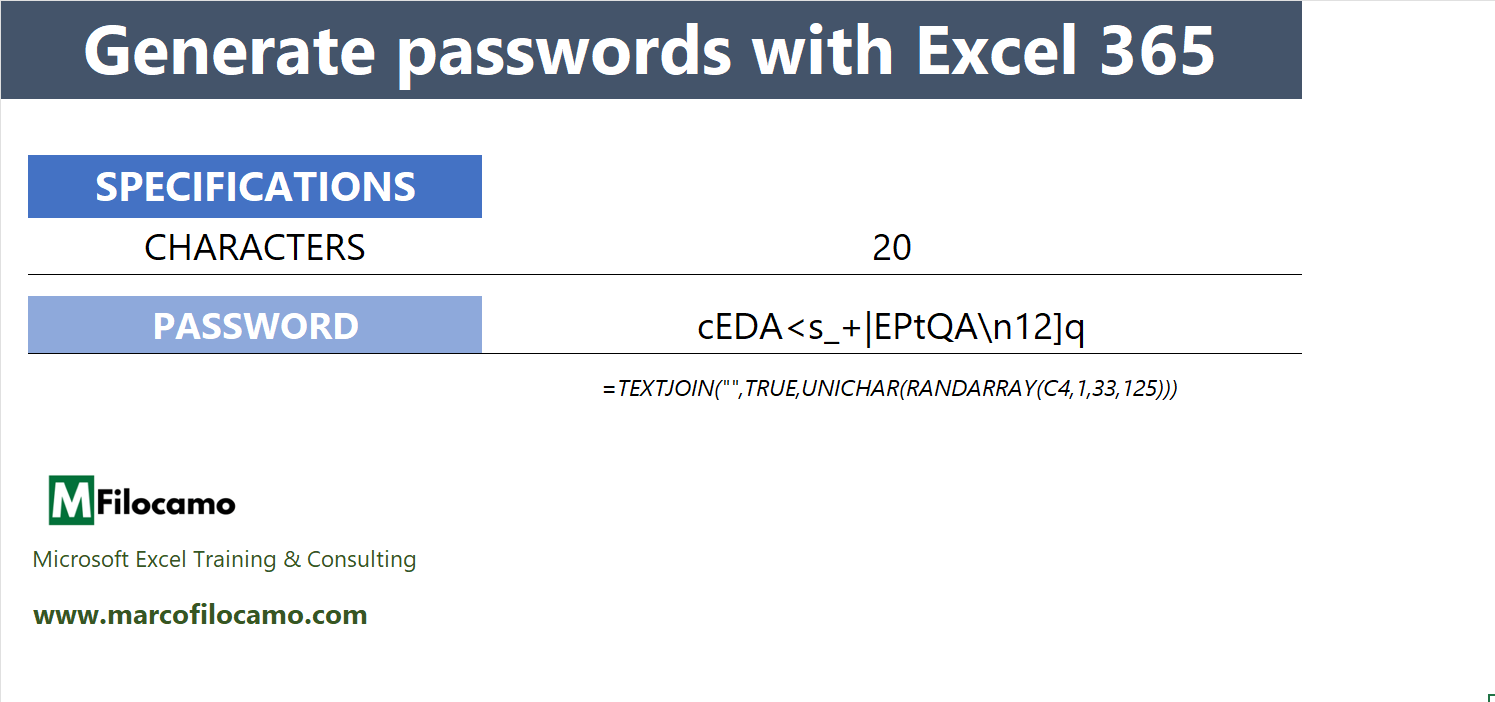
If we don’t need to include any special conditions, we can use the following combination of functions to generate a password in Excel:
=TEXTJOIN("",TRUE,UNICHAR(RANDARRAY(C4,1,33,125)))
Clearly, C4 is the cell where we enter the total number of characters we want. The rest of the formula works like this:
- RANDARRAY creates a random array of numbers. C4 tells us there are 20 characters, so there will be 20 different numbers. The numbers range from 33 to 125, we need this range for the next condition
- UNICHAR returns Unicode characters based on the number we enter. Characters 33 through 125 include numerous special symbols, in addition to the alphabet with lowercase and uppercase letters, which is why we included them earlier. We will therefore have 20 random characters, which we need to concatenate
- TEXTJOIN allows us to combine all these random characters, which will form our password
Conclusion
As we’ve seen, there are numerous ways to generate passwords in Excel! We can use either dynamic templates or a simple formula to easily create multiple secure passwords all at once.
The advice remains the same: change them often and make them fairly long, so that they’re harder for a person or specialized software to crack!