
Generating random numbers can be a bit tedious if you don’t have the right tool. In this article, we’ll show you how to generate random numbers using some useful Excel functions like RANDBETWEEN and RANDARRAY. You can download the file linked to this guide by clicking the button below.
If you’d like to create secure passwords with Excel instead, check out this article.
How to Generate Random Numbers with Excel
One function we won’t cover in this article is the RAND function. This function returns a random number between 0 and 1, a specific case that you probably won’t use very often in your files.
Let’s assume instead that we want to generate a random number within a range with a maximum and a minimum.
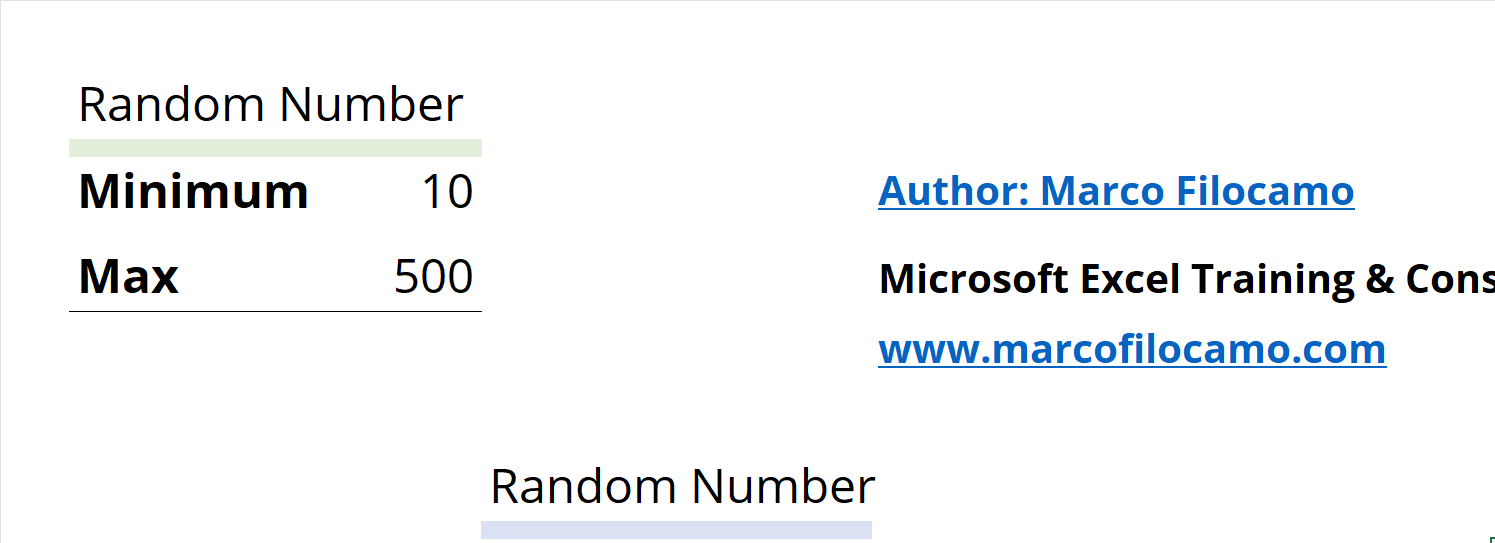
In this case, we need to use the RANDBETWEEN function, which is structured as follows:
=RANDBETWEEN(bottom,top)
We can see that it’s quite intuitive to use. In this case, let’s consider cells C4 (minimum) and C5 (maximum) with values of 10 and 500. Therefore, the value in cell D10 will fall between these two numbers, in this case, 374:
=RANDBETWEEN(C4,C5)
We need to be especially careful because every time we recalculate the file or save it, the number generated will be different. In fact, random numbers are often generated and then copied and pasted as values to remove the formulas.
How to Generate Random Numbers with Excel for Microsoft 365
Let’s look instead at how to generate various random numbers using a single function introduced in Excel for Microsoft 365. This function is called RANDARRAY and is incredibly efficient for creating a long list of numbers on a single sheet.
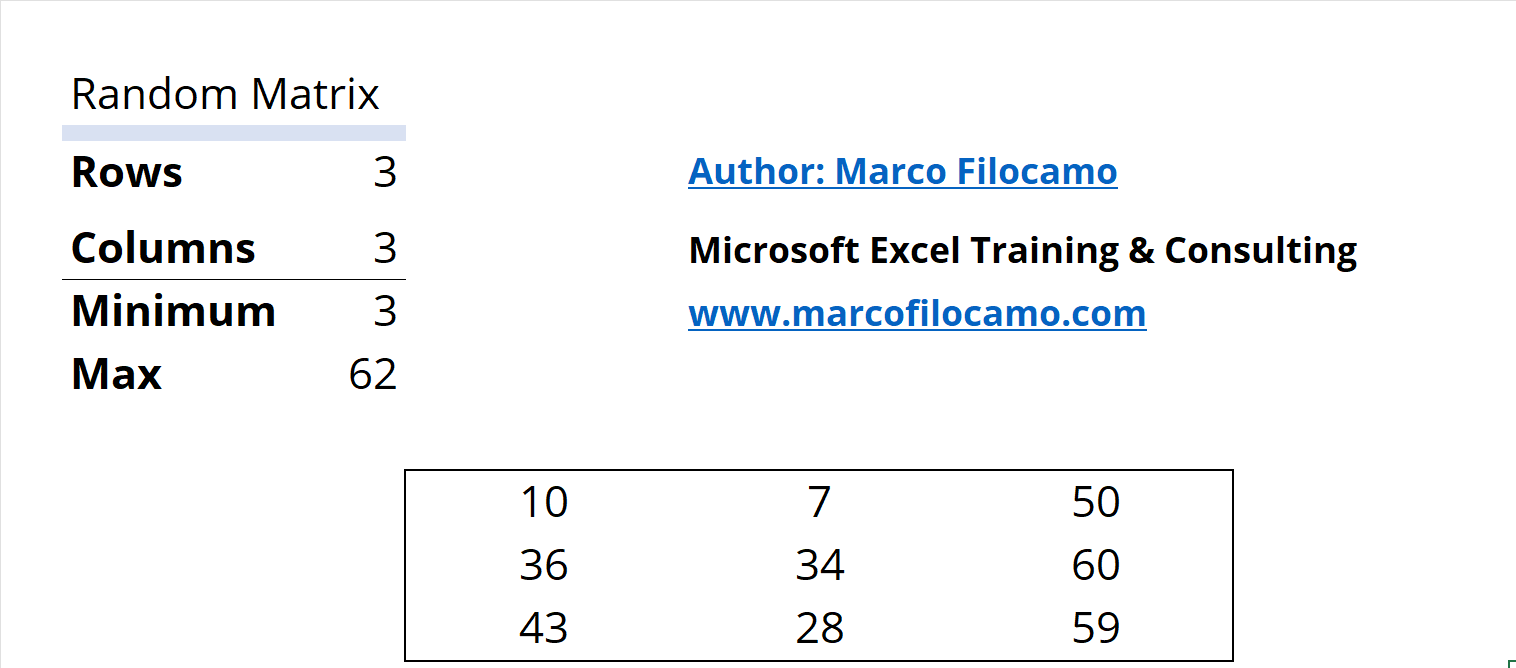
The syntax for the RANDARRAY function is as follows:
=RANDARRAY([rows],[columns],[min],[max],[integer])
Let’s see how this function is significantly more comprehensive than RANDBETWEEN, since we can also specify the number of rows, the number of columns, and whether the numbers must be integers or can also be decimals.
Since it’s a matrix, rows and columns determine how many cells the function will populate. If we enter 4 rows and 5 columns, that means 20 cells (4×5) will be filled. If we enter 100 and 6, 600 cells (100×6) will be filled, and so on. This saves us from having to copy the same formula multiple times to create a defined list; by entering it just once, we’ll directly fill the entire area we’re interested in.
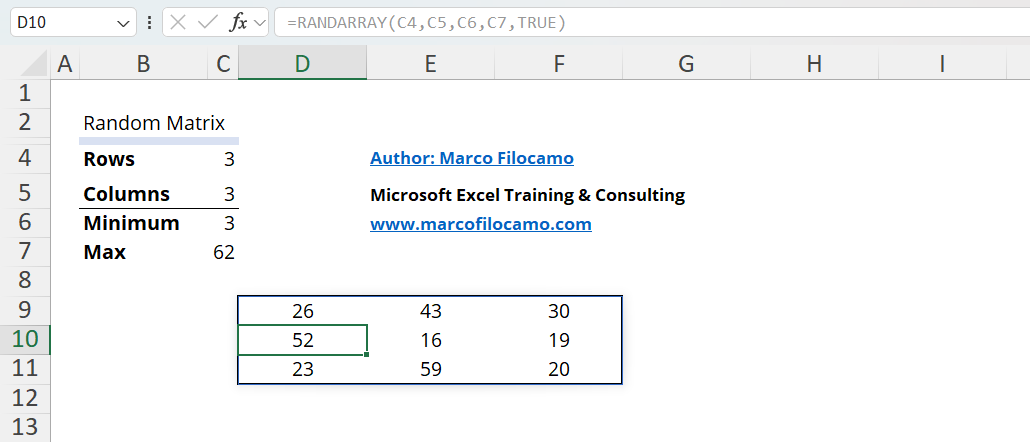
Specifically, the formula we enter specifies 3 rows (cell C4), 3 columns (C5), a minimum value of 3 (C6), a maximum value of 62 (C7), and integers.
So the formula is simply:
=RANDARRAY(C4,C5,C6,C7,TRUE)
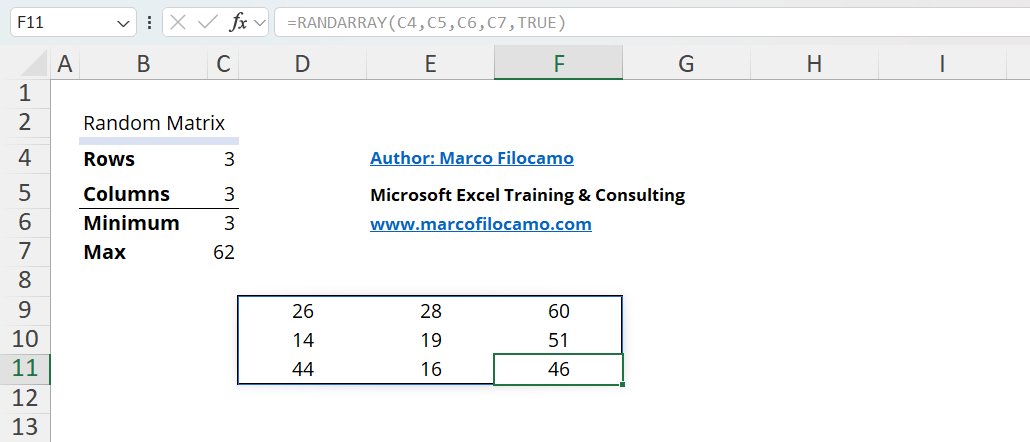
As we mentioned, the key feature is that this formula is entered just once and covers all the cells in the range, as we can see. In this case, the formula will appear in light gray, indicating that it is part of a matrix and cannot be edited.
How to Generate Random Numbers to Create Random Text in Excel
A specific example might be generating a random value from a predefined list of names.
In this case as well, we’ll use two Excel functions: INDEX and RANDBETWEEN. INDEX considers a range, and RANDBETWEEN will dynamically select a random number from the range specified by INDEX . Be sure to remove all spaces first to avoid errors, both in this case and the next.

Let’s look at the range from B4 to B8, which includes 5 different players. The formula will therefore be:
=INDEX($B$4:$B$8,RANDBETWEEN(1,5))
There’s yet another case we might want to consider, still regarding text values. If we’re not sure how many values are contained in the range, we can use the COUNTA function, which returns the number of references in the range.
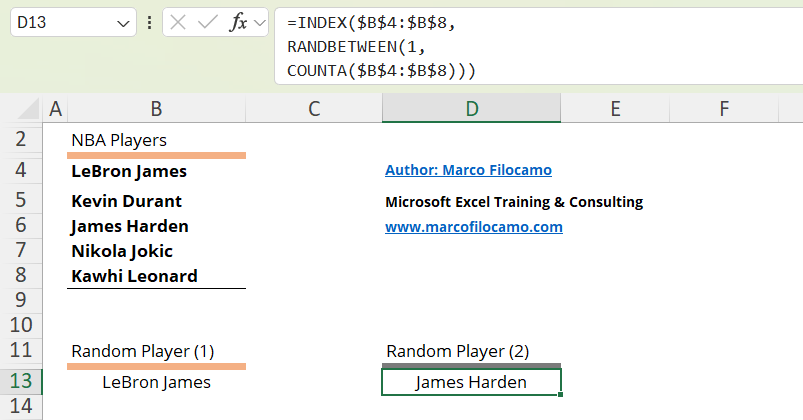
The formula in this case will therefore be:
=INDEX($B$4:$B$8,RANDBETWEEN(1,COUNTA($B$4:$B$8)))
In this case, COUNTA defines the maximum possible value of the range, that is, the count of all values within that range. As mentioned, you must be careful to use a list without spaces to avoid errors. This second case may be suitable for very long ranges, while the first is better for ranges that are easy to understand.
Conclusion
RANDBETWEEN generates random whole numbers between two limits, and RANDARRAY fills a whole range with random values in Excel for Microsoft 365. Combined with INDEX and COUNTA, they can also pick random text from a list.